
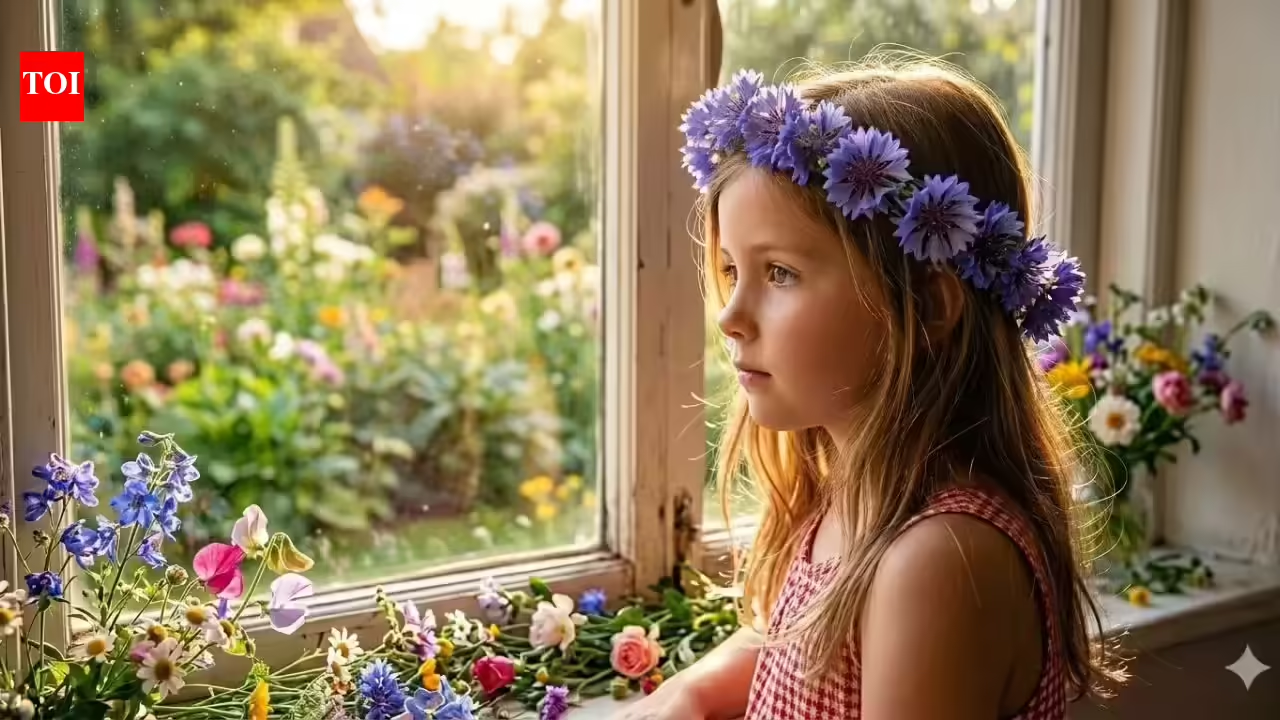

Editing a photograph was once a matter of sliders, layers, and a bit of time. Now, with Google Gemini, the experience is beginning to resemble a dialogue. Instead of tweaking the brightness or masking out the background, you just type what you want the image to look like: “Make the sky dramatic,” “Remove the people in the background,” or “Make this look like a vintage film print.” The intriguing aspect of the AI prompts in Google Gemini’s photo editing is the level of simplicity and power. Beginners can use the language of everyday life, but power users may try out a level of specificity in the instructions to tweak the lighting, color tones, textures, and even the mood of the photograph.
15 Google Gemini AI photo editing prompts
Make this man’s portrait look warm and natural, smooth out harsh shadows, and gently blur the background.

AI Generated
Bring out the colours and style in this woman’s casual photo so it looks like a fashion magazine shot.
AI Generated
Lighten up this picture of kids playing outside, add a little sun glow, and make the colours pop naturally.
AI Generated
Give this sunset photo of a couple a soft, romantic feel by enhancing the warmth and gently blurring the background.
AI Generated
Touch up this family photo so everyone looks clear and well-lit, without changing their natural look.
AI Generated
Make this athlete’s action shot sharper and more dynamic, keeping the motion feeling alive.
AI Generated
Subtly smooth this woman’s portrait, brighten her eyes, and add soft lighting to make it feel natural.
AI Generated
Enhance this child running in a flower field with a little glow and brighter colours, keeping it playful.
AI Generated
Bring out the colours and clarity in this couple’s hiking photo, highlighting them just enough without overdoing it.
AI Generated
Tidy up this group party photo, balance the light, and make everyone look their best naturally.
AI Generated
Add subtle lighting and clarity to this gym photo of a man lifting weights to show muscle tone without exaggerating.
AI Generated
Make this street photo of a woman crisp and vibrant, keeping the casual, everyday feel.
AI Generated
Brighten this birthday party shot of kids, adding a cheerful glow and making faces clearer.
AI Generated
Adjust this snowy couple photo so the snow looks bright, the couple stands out, and the scene feels cozy.
AI Generated
Make this picnic photo of a large family more vivid and clear, enhancing colours but keeping the natural outdoor look.
AI Generated
How to generate and edit images using Google Gemini
- Step 1: Access Google Gemini
Access to Google Geminii and sign in using your Google account.
- Step 2: Select the Image feature
In the chat box, you can type an image request.
- Step 3: Write a clear prompt
Describe what you want to create in detail. For instance: “Create a cinematic sunset over the Himalayas in 4K realism”
- Step 4: Refine the output
If you don’t get the desired output, you need to change your prompt. Describe your image in detail.
- Step 5: Edit existing images
Upload an image and write instructions such as: “Remove the background and replace it with a beach at sunset”After you’re done, you can download the image in the desired resolution and use it.















Leave a comment