

Hello, this is Nana🌸
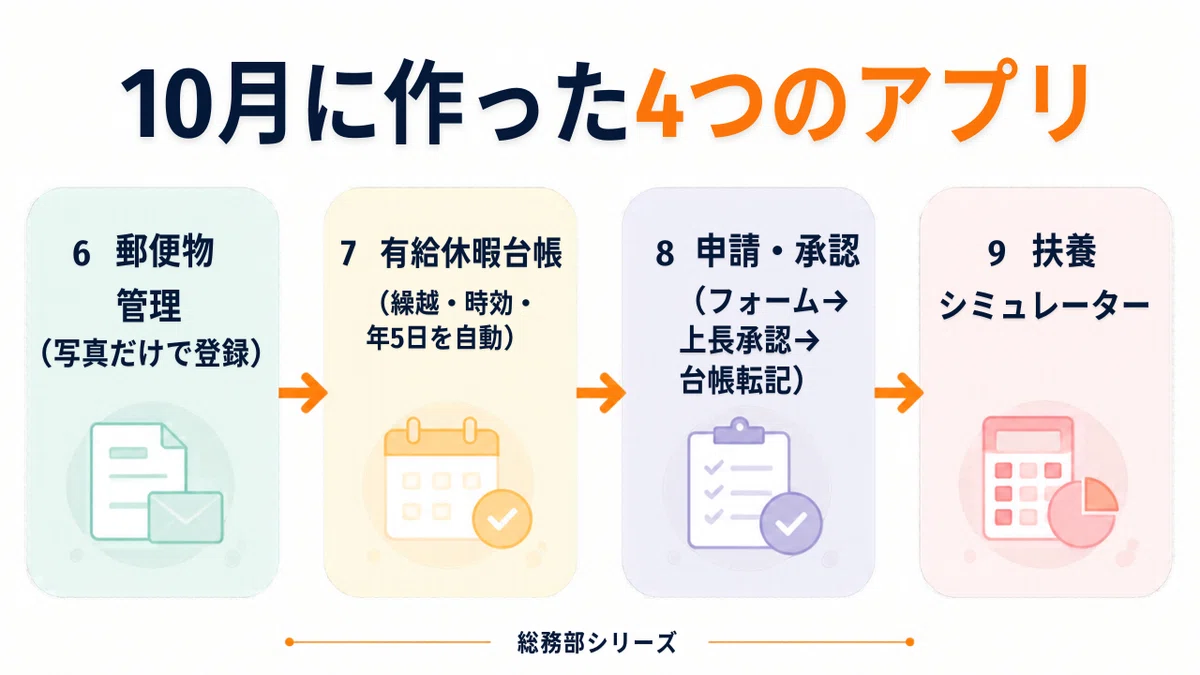
In October, I used GAS (a system for automating Google Sheets, etc.) and AI to build four apps (⑥–⑨) to streamline general affairs tasks. The biggest lesson I learned was that what is needed for AI automation is not the ability to write code, but the ability to articulate ‘what to do, in what order, and how to make decisions.’
In this article, I will summarize the review of these four apps and the points where I stumbled.
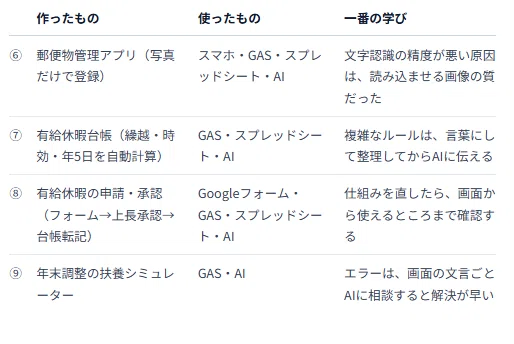
General Affairs Streamlining Case Studies: A List of the 4 AI Automation Apps Built in October
Why did I decide to use GAS and AI for general affairs work?
General affairs work involves many tasks that are repeated with the same procedure every time. Recording mail, managing paid leave, and checking year-end adjustments were time-consuming due to manual entry and manual calculations.
That is why I tried ‘AI automation.’ AI automation means telling the AI in words what task you want to do and having it create a system that runs automatically. This time, I worked with AI to create GAS (Google Apps Script), which automatically operates tools like Google Sheets.
Even without programming knowledge, if you can articulate ‘what to do, in what order, and how to make decisions,’ the AI will shape it for you.
Reviewing the 4 AI automation apps one by one
⑥ Mail Management App: The cause of ‘poor accuracy’ was image quality
This is an app that allows you to register mail just by taking a photo. While I was building it, I thought the ‘character recognition accuracy was poor.’
However, the real cause was the quality of the images I was having it read. Smartphone scans were much better than the multifunction printer scans I had been using as a matter of course. Before doubting the AI or the system, review the quality of the data you are inputting. This was my biggest realization.
⑦ Paid Leave Ledger: ‘Complex rules’ that I failed to implement in Excel were shaped by AI
Paid leave rules, such as carry-over, statute of limitations, and the mandatory 5 days of leave per year, are complex. I tried to create this in Excel before and failed.
This time, I organized the rules into words first before explaining them to the AI. As a result, it was able to turn them into a working system. I realized that what is important is not being able to write code, but being able to articulate ‘what to do, in what order, and how to make decisions.’
⑧ Paid Leave Application and Approval: From form to supervisor approval and ledger entry
I connected the process from applying via Google Forms to supervisor approval and automatic entry into the ledger. When fixing a system, it is important to check not only ‘whether the internal logic works’ but also ‘whether it can actually be used from the screen’ as a set. This is because if it is not visible, it is the same as ‘not existing’ for the user.
⑨ Year-End Adjustment Dependent Simulator: Two stumbling blocks
Stumbling block ①: ‘FuyoCalc is not defined’ error
At first, there were three files: two code files and one HTML file containing the calculation logic. When I ran it, I got the error: ‘An error occurred during calculation: FuyoCalc is not defined.’ I didn’t understand what it meant, so I consulted the AI, which integrated the calculation part into the screen file and combined them into two files. As a result, the error stopped appearing.
Stumbling block ②: I fixed it, but the old screen still appears?
With GAS, if you don’t redeploy with a ‘new version’ after fixing the code, it may continue to run using the old code (the URL does not change). If you’ve fixed something but it hasn’t changed, this is the first thing you should suspect.

Benefits of AI automation and things to keep in mind based on my experience
Benefits
-
Reduced manual input and manual calculations, leading to more efficient general affairs operations
-
Complex rules that I struggled with in Excel could be turned into a system by organizing them into words
-
Even when errors occurred, I could find clues to a solution by consulting the AI with the exact error message from the screen
Things to keep in mind
-
For tasks involving personal information, such as mail handling or year-end adjustments, use dummy data for testing and ensure addresses or names are not visible on screens used for articles
-
After fixing the system, verify not only that it ‘works’ but also that it ‘can be used from the screen’
-
With GAS, always redeploy with a new version after making fixes
-
Build with the premise that final judgments and confirmations will be made by humans
Frequently Asked Questions (FAQ)
Q. Can a GAS beginner create apps to streamline general affairs?
A. In my case, I was able to create them without writing the programs myself. My approach was to put what I wanted to do into words, explain it to the AI, and if an error occurred, consult the AI with that error.
Q. Where should I start with streamlining general affairs?
A. I recommend starting with tasks that involve repetitive manual input or manual calculations. I started with mail logging, paid leave management, and year-end adjustment verification.
Q. What do you do if the AI makes a mistake?
A. If I feed the error message from the screen directly to the AI, it organizes the cause and fixes it. However, the final check is always performed by a human.
In November, we will expand to “streamlining office work”
Starting in November, I will think about streamlining office work in general, not just for general affairs. I plan to apply what I learned in October—”first put it into words and organize it”—to various office tasks.
✍️ Today’s realization
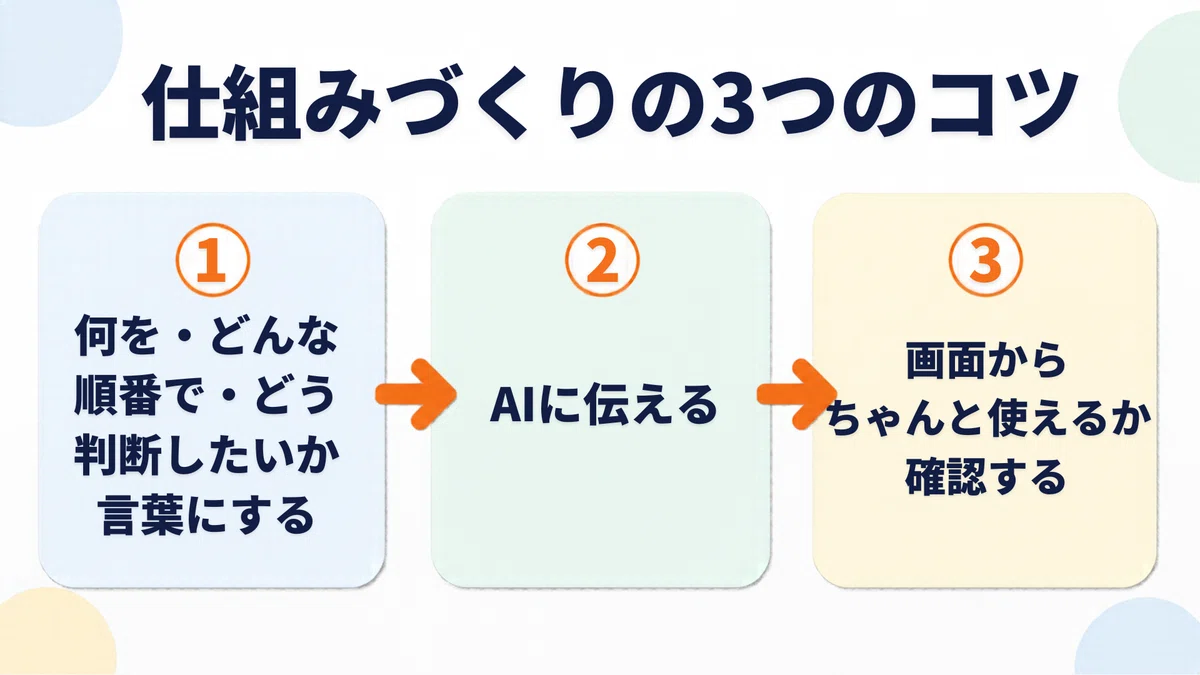
What is important in building a system is not being able to write code. It is putting into words “what, in what order, and how you want to make decisions.” And after fixing it, checking to see if it “can actually be used from the screen.” If it is not visible, it is the same as “not existing” for the user.
#GeneralAffairs #GeneralAffairsDepartment #BusinessEfficiency #OfficeWork #AIAutomation #GAS #GoogleSheets #AIBeginner #GeneralAffairsDepartmentSeries #WeeklyNoteUpdate














Leave a comment